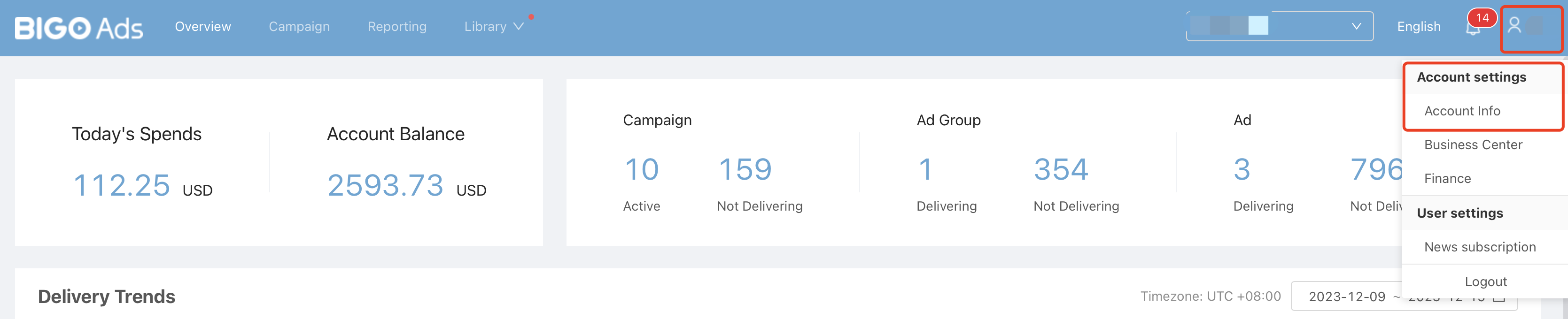
Ad Account
1. Create Ad Account
1.1 Path: Business Center - Asset - Ad Account - Create Account.
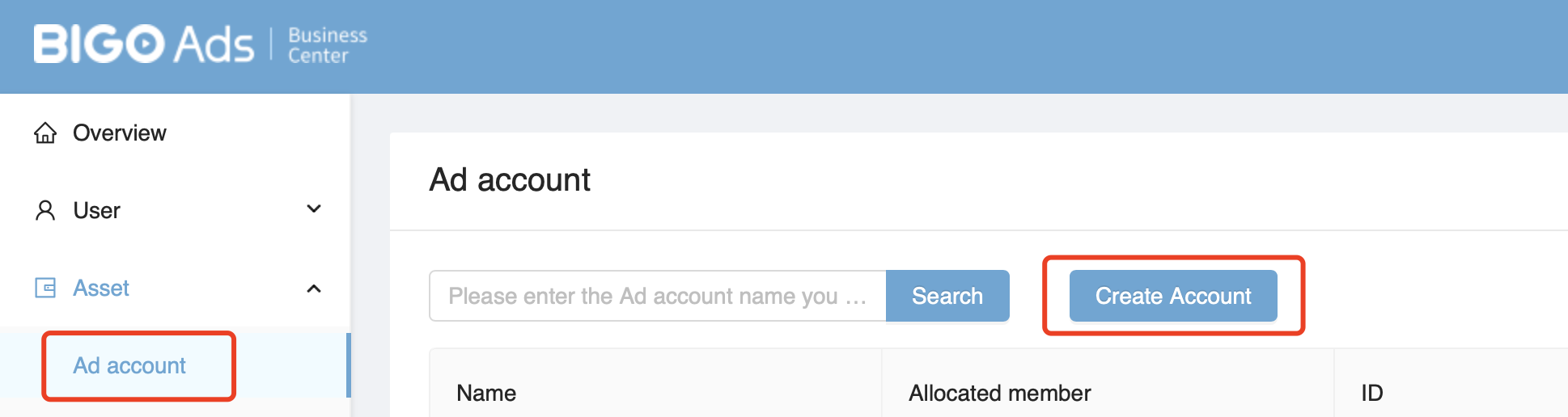
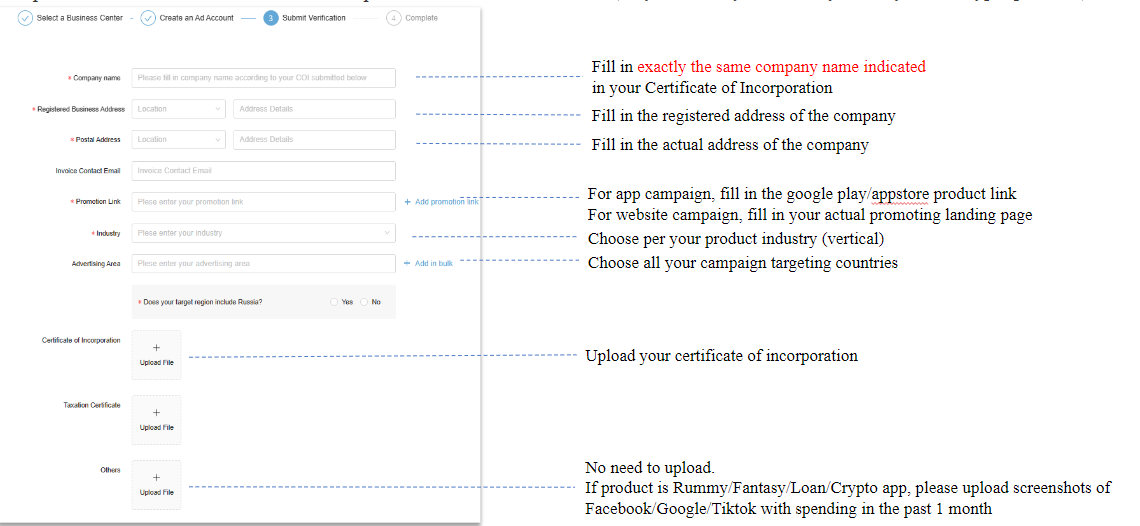
1.2 Fill in info required and sub
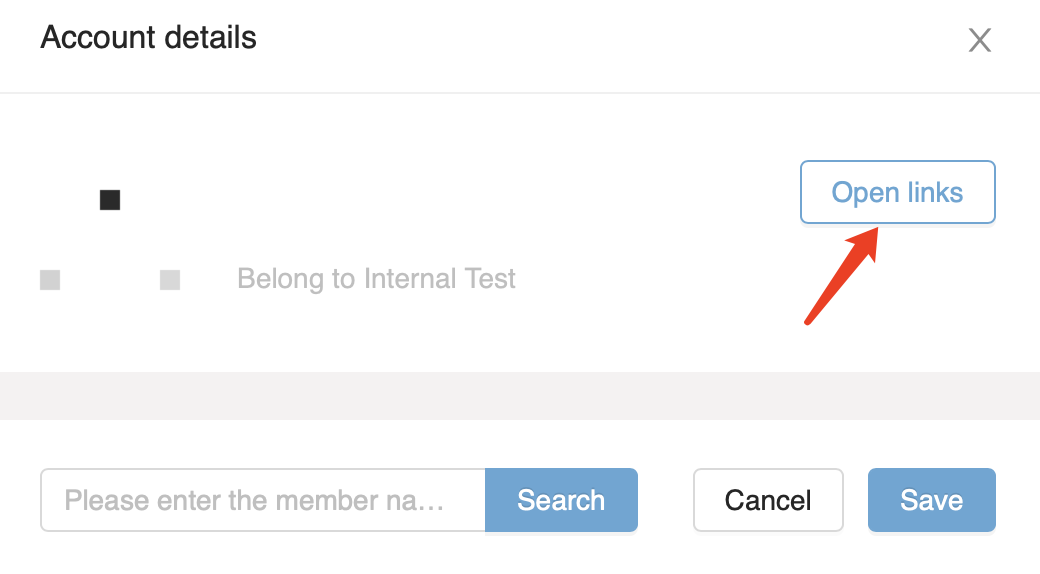
1.3 You can create several ad accounts under one business center, and in [ad acocunt] page, pressing [open links] to enter your ad account dashboard.
Please check the picture below for your reference.

2. Ad Account Audit
2.1 When creating ad accounts, you need to fill in company name, promotion link, target geos, category and your license.
2.2 You will receive a notice and mail notification after audit process.
2.3 Note:
2.3.1 Promotion link of your campaign should be the same as of your account, otherwise you might not be able to start the campaign.
2.3.2 You can add several promotion links to one account.
2.3.3 You can skip uploading verification when creating your account, but it would be in pending. You need to complement your verification to start your campaigns.
Path: Ad Account dashboard - Account Info - Edit.
2.3.4 If you account apply is denied, please revise account information and sumit again.
Path: Ad Account dashboard - Account Info - Edit.
2.3.5 Ad account name and other information can be revised.
Path: Ad Account dashboard - Account Info - Edit.